
The best VR headset for adult video depends on your playback software, comfort and budget. Start by checking the format of the videos you want to watch, then choose a headset and player that support that format. A high-resolution display alone does not guarantee that every VR180 file will play correctly.
VR headsets to compare for video playback
This comparison uses published manufacturer specifications. The recommendations below are editorial judgments about those features, not results from a studio benchmark.
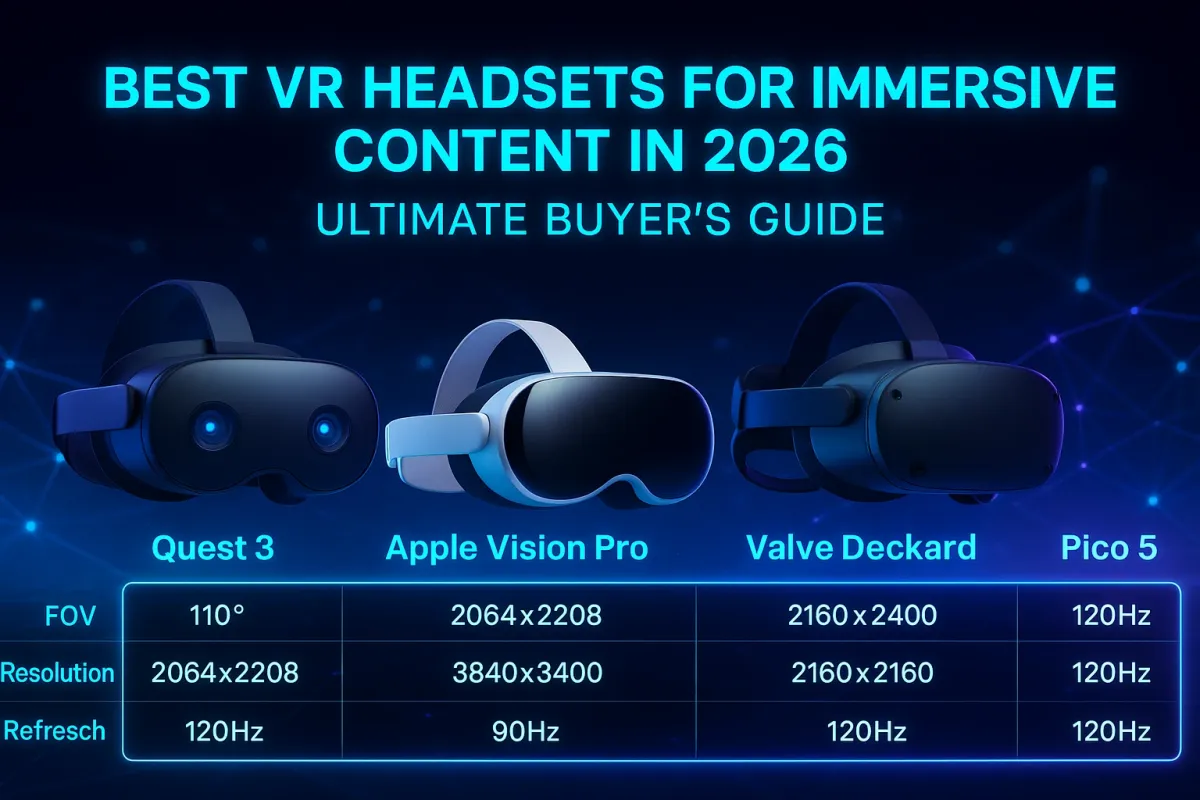
| Headset | Relevant hardware | What to check before choosing |
|---|---|---|
| Meta Quest 3 | Pancake optics; 2064 × 2208 physical pixels per eye. | Player compatibility, lens fit and storage for downloaded files. |
| Meta Quest 3S | 1832 × 1920 physical pixels per eye; a lower-resolution display than Quest 3. | Compare the display and fit in person if video clarity is your priority. |
| Apple Vision Pro (M5) | Micro-OLED display system with 23 million pixels in total. | Confirm that your chosen visionOS player supports the file's projection and stereo layout. |
| PlayStation VR2 on PC | Requires a compatible Windows PC, the PS VR2 PC adapter and a DisplayPort 1.4 cable. | Check the PC, connection and player requirements before buying accessories. |
Hardware references: Meta display resolutions, Meta Quest 3 and Quest 3S overview, Apple Vision Pro M5 specifications, and Sony's PS VR2 PC requirements.
Meta Quest 3 or Quest 3S?
Our starting recommendation is to compare Quest 3 first when display resolution and pancake optics are your main priorities. Quest 3S is worth comparing when the purchase budget matters more. Meta positions the two headsets within the same mixed-reality family, but their displays are different. Try the fit and lens position if possible; specifications cannot tell you how comfortable a headset will feel during a longer viewing session.
Use the Meta Quest 3 playback guide or the Quest 3S guide to check the site's playback options before deciding.
When to consider Apple Vision Pro
Vision Pro is an option to compare if you prefer the visionOS ecosystem and its micro-OLED display system. Apple's supported refresh rates and display specifications describe the headset; they do not certify compatibility with every third-party VR file. Check the exact player, video format and projection mode you intend to use. The Vision Pro playback guide explains the site's available approaches.
Can an existing PS VR2 be used with a PC?
Sony supports PS VR2 on compatible Windows PCs through its PC adapter. Setup also requires the specified connections and software. Some console features, including HDR output and eye tracking, are unavailable in PC mode. Treat this as an option for an existing compatible setup and confirm the video player's support separately. See Sony's console-versus-PC feature comparison.
Check these four playback details
- Projection and stereo layout. A flat video, a stereoscopic VR180 video and a 360-degree video need different player settings. Match the projection and side-by-side or top-bottom layout to the file.
- File resolution and codec. An 8K source label describes the video file, not an 8K display in each eye. Check the player's supported codec, resolution, frame rate and bitrate together.
- Streaming versus downloads. Streaming depends on network delivery as well as decoding. Local playback can remove a network bottleneck, but downloaded HEVC files are still compressed video. Downloading does not restore detail absent from the source.
- Available files. Check each title's actual playback options. Different releases can have different resolutions and formats.
For setup steps, see how to watch VR video. For the collection with files labeled 8K, browse the 8K VR180 collection. Choose a headset based on the files and software you will actually use, then compare current manufacturer pricing and local availability.